
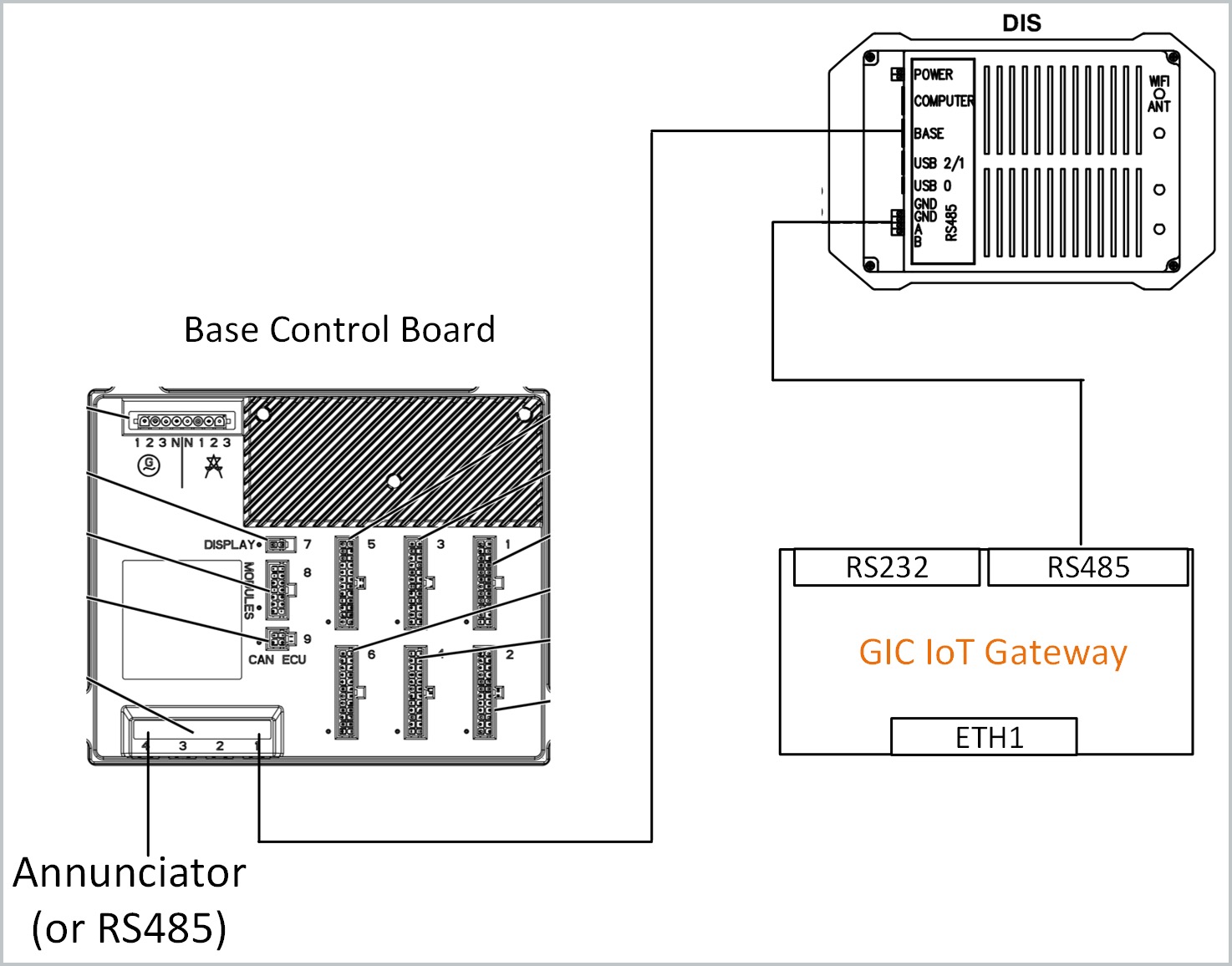
This section describes a typical setup for the Gateway connecting to the Pro Sync Display RS485 port. A typical setup for the Gateway connection to the RS485 Annunciator is provided in the first illustration.
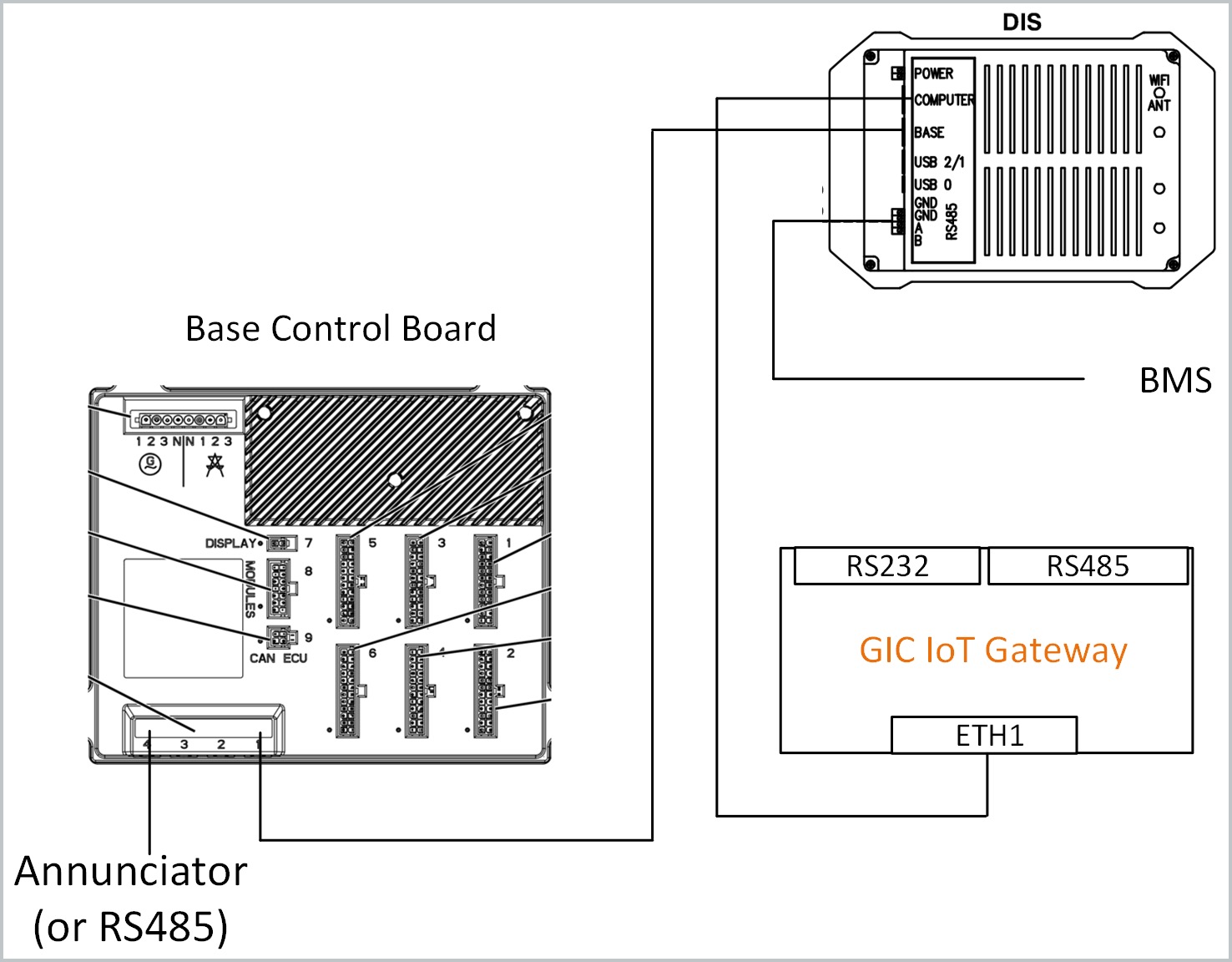
A BMS connection to the Pro Sync display can be achieved with Modbus TCP/SNMP protocol, requiring a BMS-computer connection.
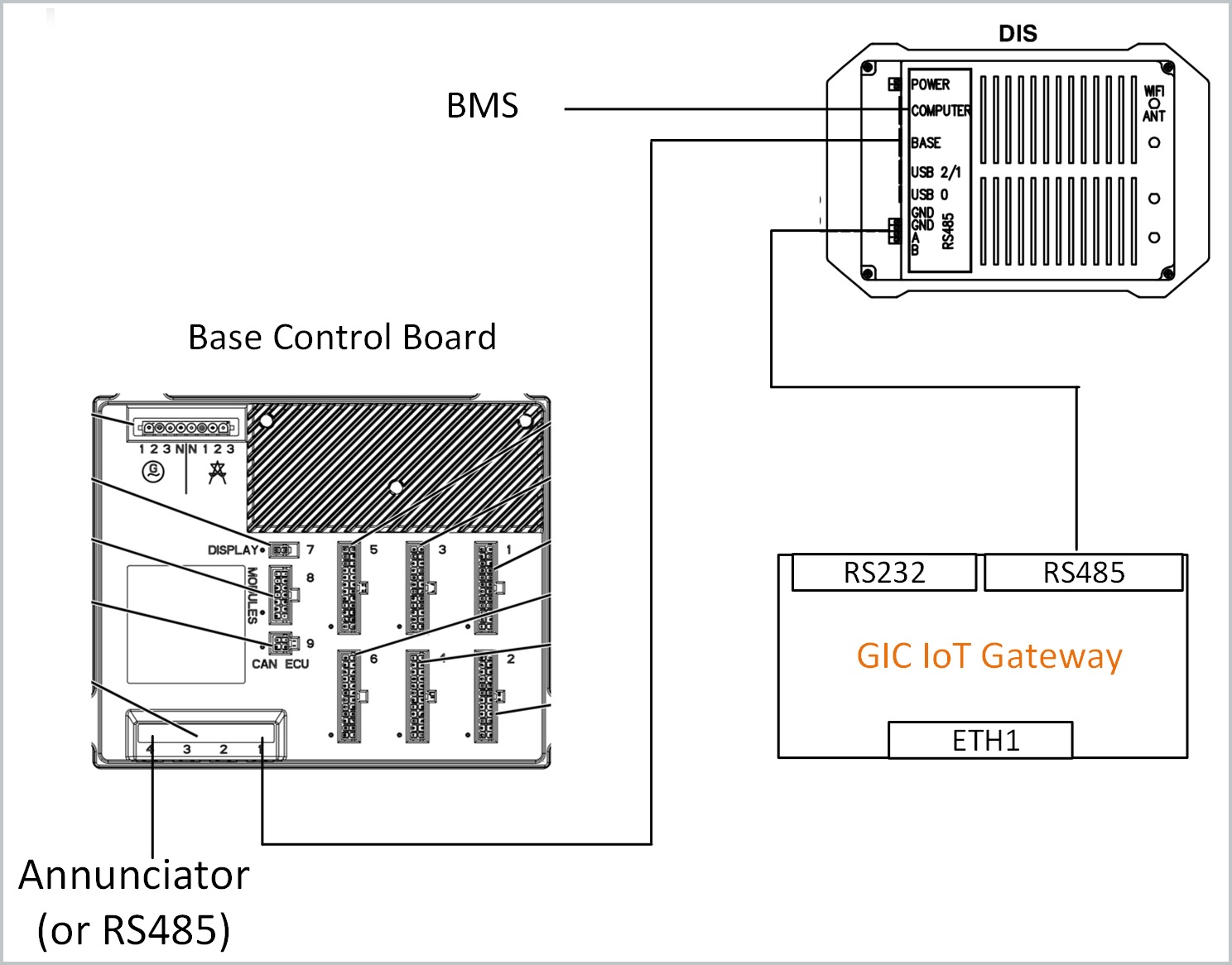
A BMS connection to the RS485 can be achieved with Modbus RTU protocol.
Steps to configure the TCP port are provided in this section.
-
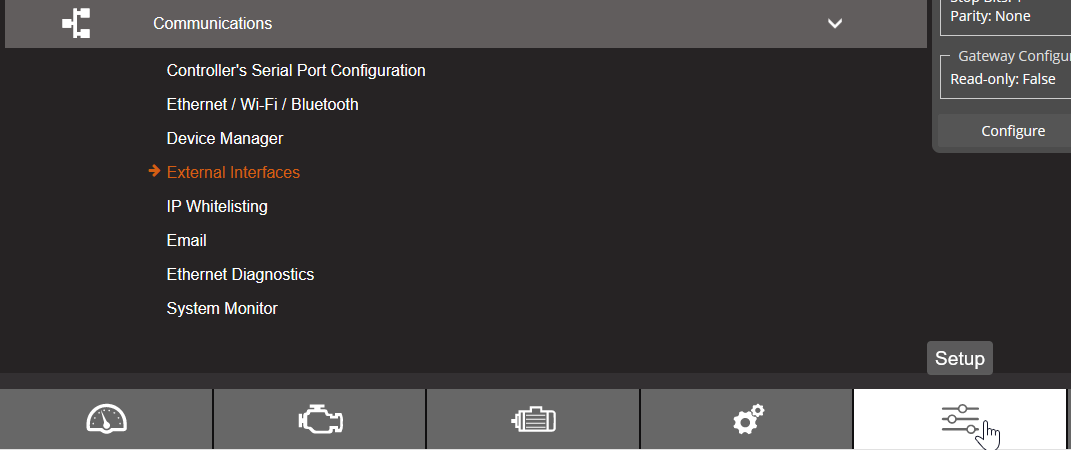
Via the touch screen display menu: a) Navigate to the Setup menu at bottom of screen b) Navigate to the Communications module c) Select External Interfaces menu option.
-
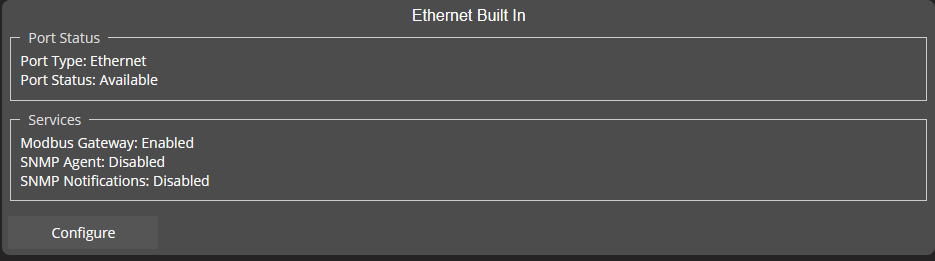
In the Ethernet Built In module, click the Configure button.
-
Click Configure button in the Modbus Gateway module.

-
Confirm that Enable and Ignore Unit ID toggles are selected.
-
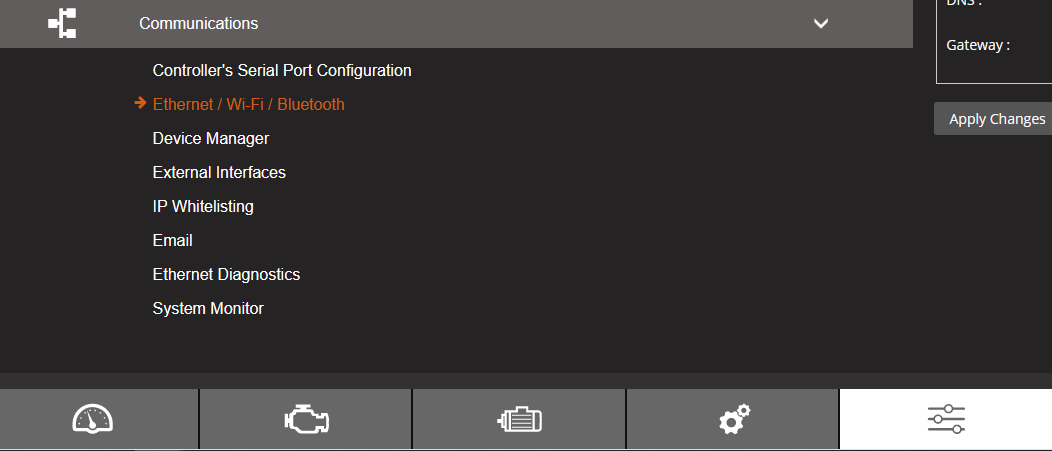
To update IP address: a) Navigate to Setup. b) Navigate to Communications c) Use the Ethernet/Wifi/Bluetooth menu option.
-
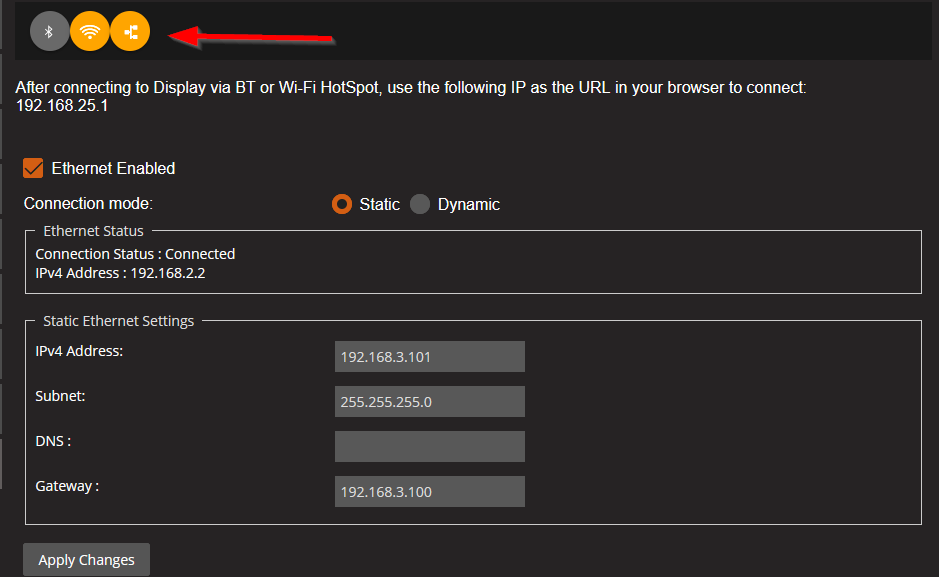
Click the local network icon to view IP address settings.
-
Update to the values provided here and be sure to click Apply Changes button.
|
Ethernet Enabled |
Toggled on |
|
Connection mode toggle |
Set to Static |
|
IPV4 address |
192.168.3.101 |
|
Subnet |
255.255.255.0 |
|
Gateway |
192.168.3.100 |